
Custom metadata fields allow tracking additional information for data sources, data owners, Processing Activities, record classes, privacy obligations and record types. The standard set of metadata fields can be enhanced with custom metadata points which are relevant to the organization and its business needs.
How-to Steps
To add a new custom field to the selected object type (record type, record class, Processing Activity, privacy obligation, data source, or data owner):
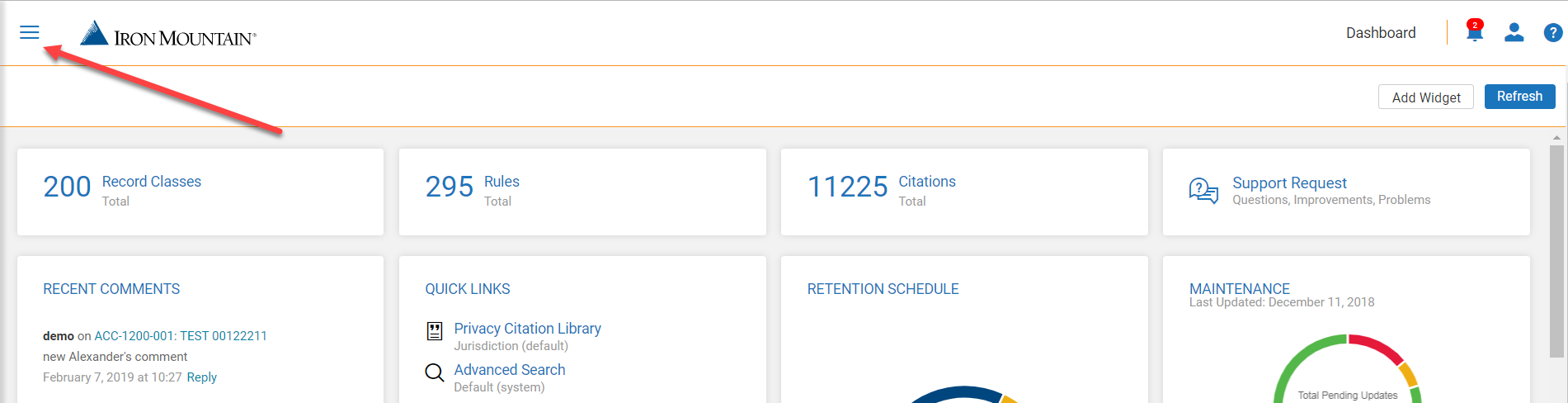
1. Open the hamburger menu in the left upper corner. Go to Admin > Settings. The Settings page opens.
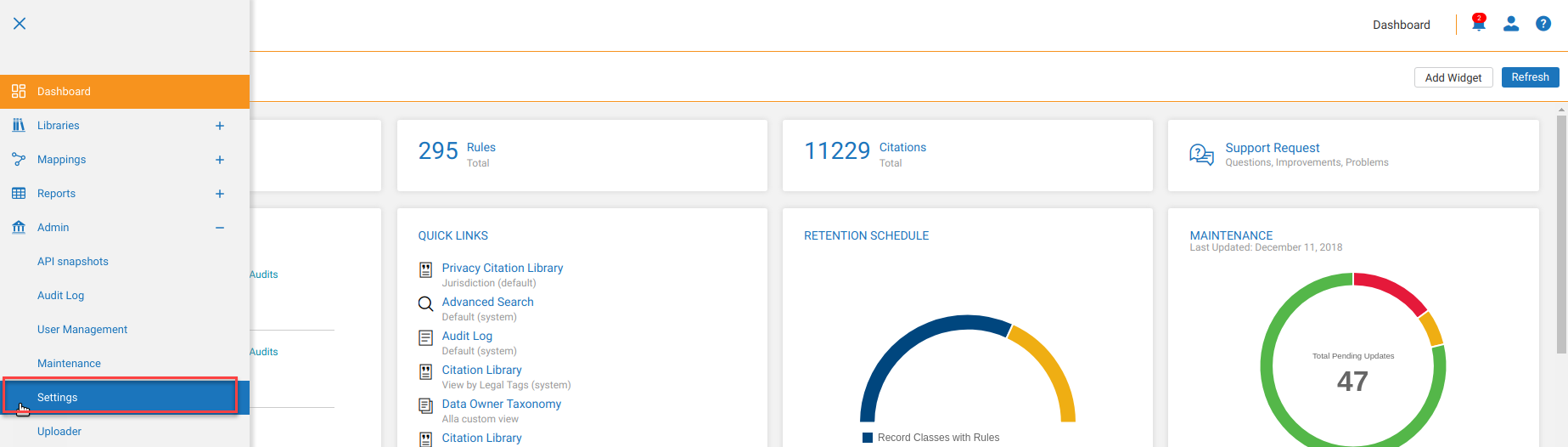
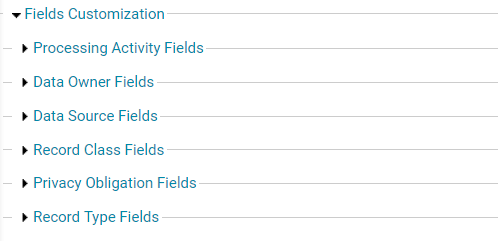
2. Expand the Fields Customization The list of available objects appears.
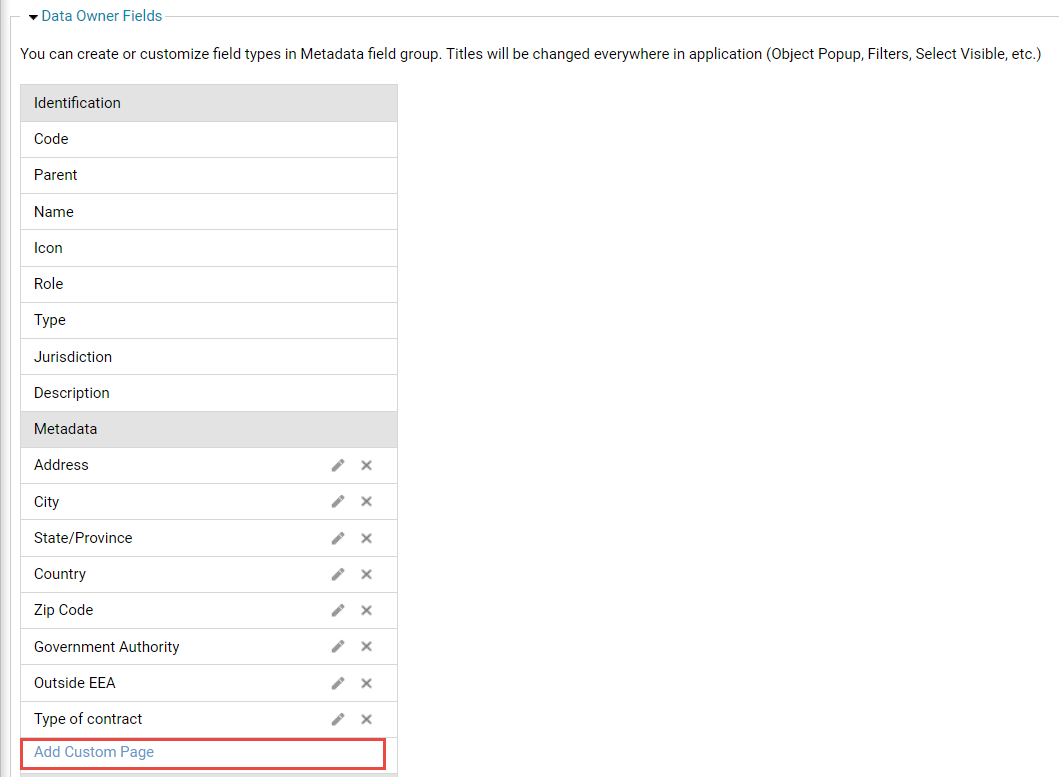
3. Expand the Fields accordion for the necessary object. The list of standard and custom metadata fields appears. Click +Add Custom Field. The New Custom Field popup window opens.
4. On the New Custom Field popup window, specify the following information for the new custom field:
- Label Name – the name of the field visible to the all users;
- Help Text – the hint to the custom field that all user can see at clicking the label;
- Field Type – select the type of the custom field (single-line text, multi-line text, dropdown, radio button, URL);
Please note that the custom field type cannot be changed after the field is created.
- Required Field – check if the user is required to provide the field value for each object of this type.
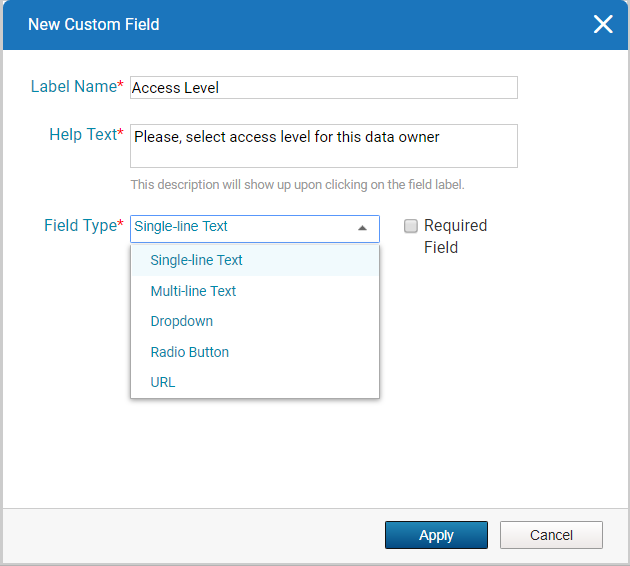
5. If the new custom field is radio-button or dropdown, specify at least two Options. Click Add another option to add more. Click remove to delete an option.
Please, note that option can be changed at any time later, however, the objects that already use updated/removed options will need to be manually updated.
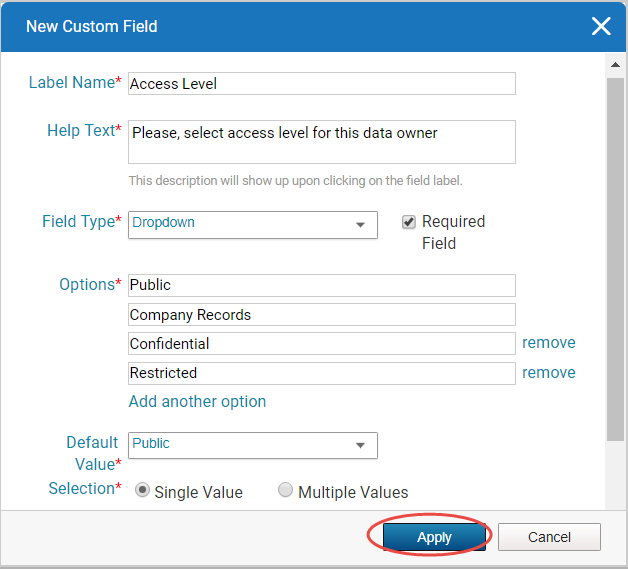
6. If the new custom field is radio-button or dropdown, select the Default Value from the list of entered Options. Identify whether a user is allowed to select a Single Value only or Multiple Values.
Please, note these settings cannot be changed later.
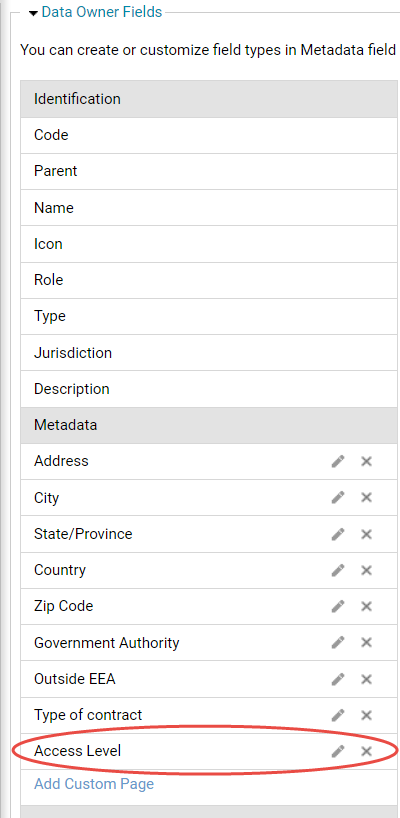
7. Click Apply. The New Custom Field popup window closes and the new field is visible in the Metadata field group.
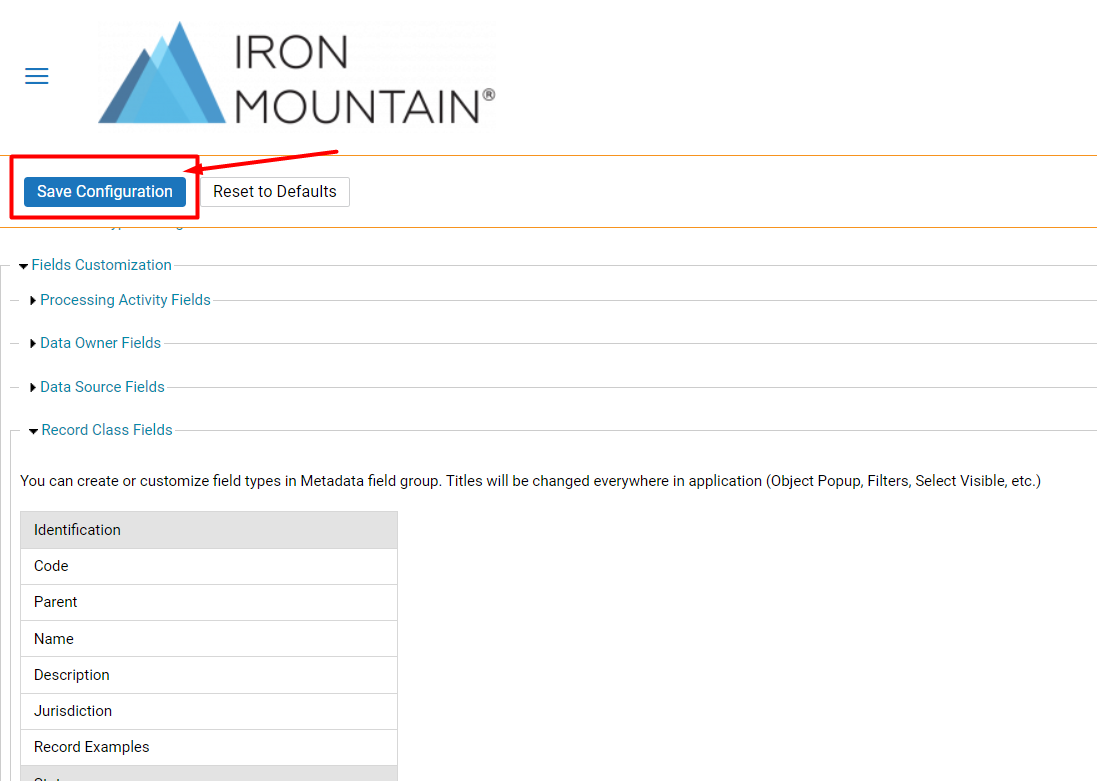
8. Find the Settings page and click Save Configuration. A new custom field is added.
9. A custom field can be deleted by clicking the  icon, confirming the action and saving configuration as given in step 8. Please, note that a custom field deletion destroys the data stored in this field in all existing objects which may lead to potential data loss.
10. A custom field can be edited by clicking the  icon, making edits to the custom field, clicking Apply and saving configuration as given in step 8.
To view the changes made to the custom fields:
1. Go to the respective library and select any object of the necessary type. The content popup window opens. The custom fields in the Metadata field group are visible.
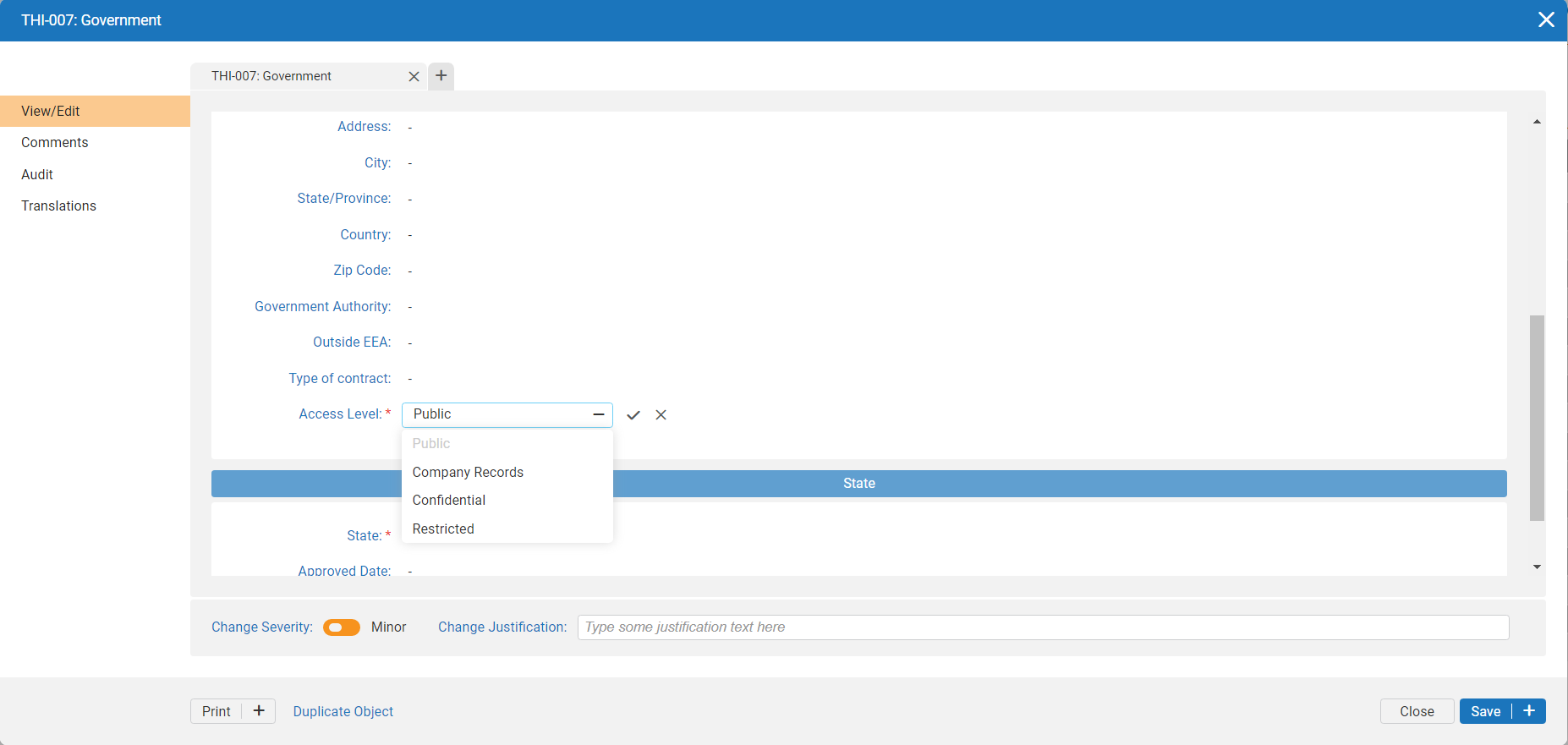
Please, note that if the object has no custom fields, the Metadata field group is hidden. All custom fields support the generic PCS functionality such as filters, select visible columns in the tree-grid, uploader, IG Portal view, search, print, export and reports.
Comments
0 comments
Article is closed for comments.