
The User Activity - Tabular can be found in the Reports Builder section of Policy Center. In the Reports Builder menu, the report is found under the User Activity/Permissions Reports category. It is one of the advanced reporting options where users can generate an Excel file that displays users' activities information. Site Admin, Records Manager, Records Administrator, Policy Manager, User Admin has access to the Report to review users' actions history.
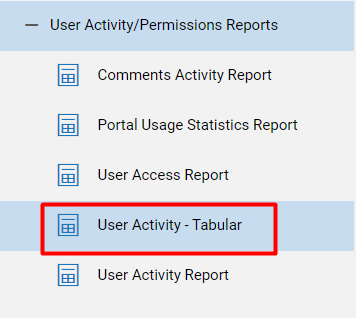
To configure the User Activity - Tabular report, first go to Settings.
Here, the user will see several configuration options. The default settings will produce a report that
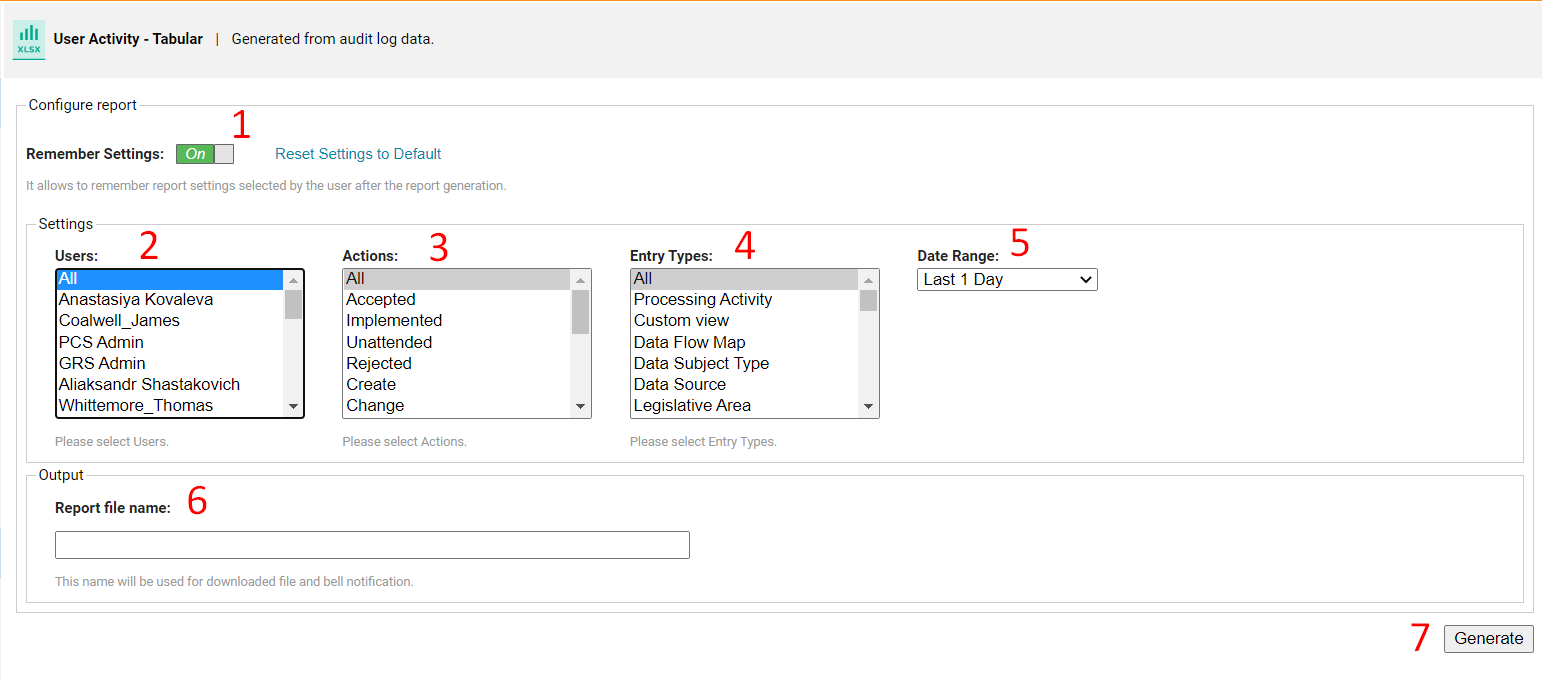
1. Note that at the top of all report configurations, you the user can save previous settings with the On value of the Remember Settings toggle button. Report settings are saved per user. It's also possible to restore default report settings with the link to the right.
2. Select Users whose actions should be included in the report.
3. Choose the types of Actions that were produced.
4. Under Entry Types, select retention objects for the report.
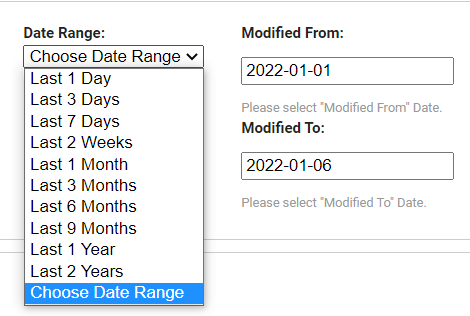
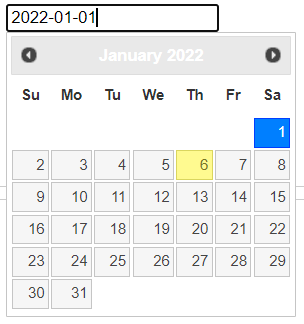
5. Set the Date Range from the drop-down menu. Selecting 'Choose Date Range', you will be suggested to define the exact dates which can be entered as text or picked from the calendar widget.
6. Lastly, users can create a custom Report file name which will overwrite the name that appears in the notification area once the report has been generated.


7. Click on the Generate button at the lower right of the screen to generate the User Activity - Tabular report.
Example of the report output.
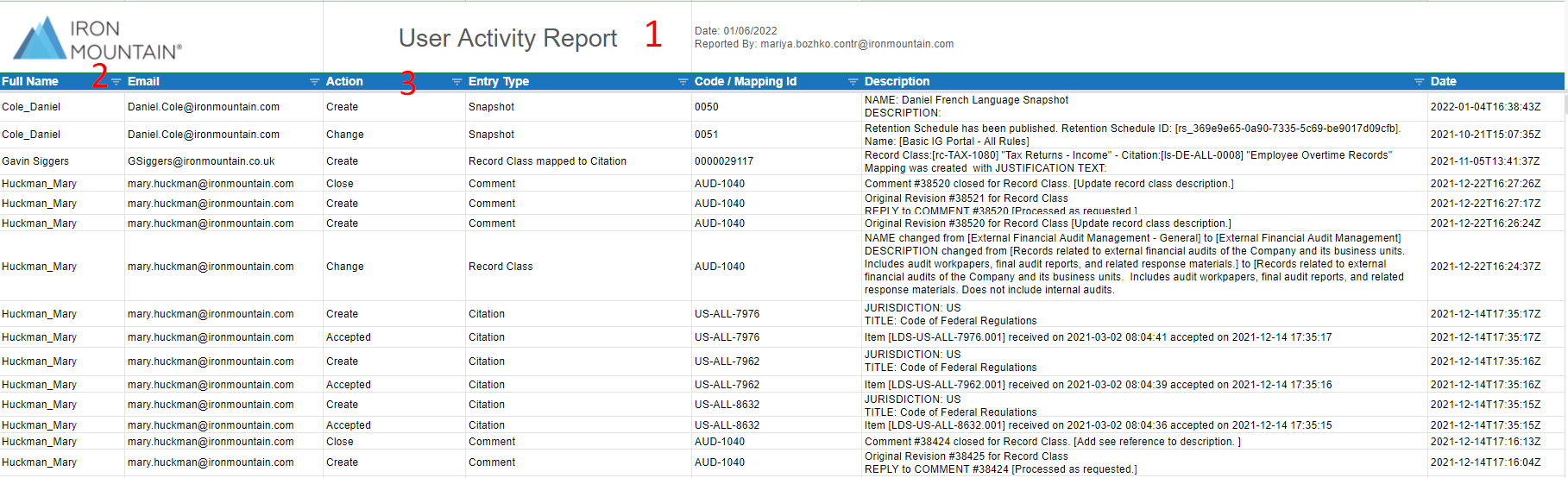
1) In the report header, there is IRM default or custom logo, report title, generation date and user name are presented.
2) For each column, there is a filter applied so that information can be easily found.
3) The following columns are in the report:
|
Full Name |
User’s full name pulled from PCS user account |
|
|
User’s email Of PCS user account |
|
Action |
Action that user has performed with an object |
|
Entry Type |
Object type |
|
Code/Mapping ID |
Affected object code or mapping id |
|
Description |
Detailed description from Audit |
|
Date |
Date of the change from Audit |
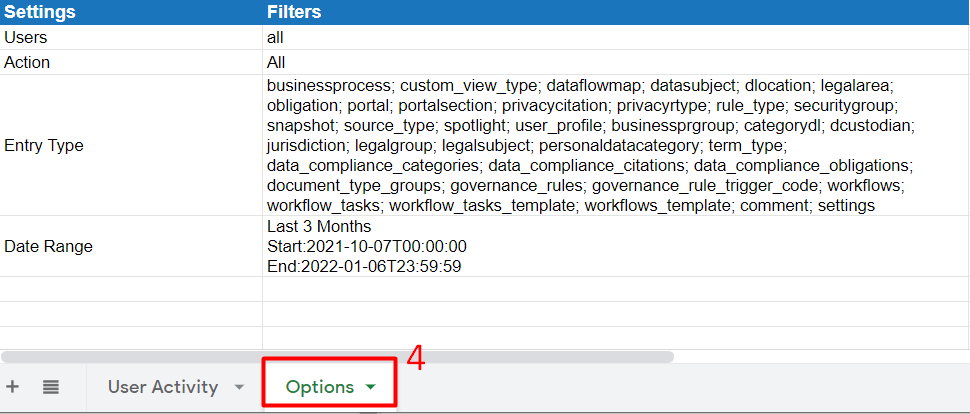
4) In the second Options tab of the file, the user can check out the settings applied to this report.
Comments
0 comments
Article is closed for comments.